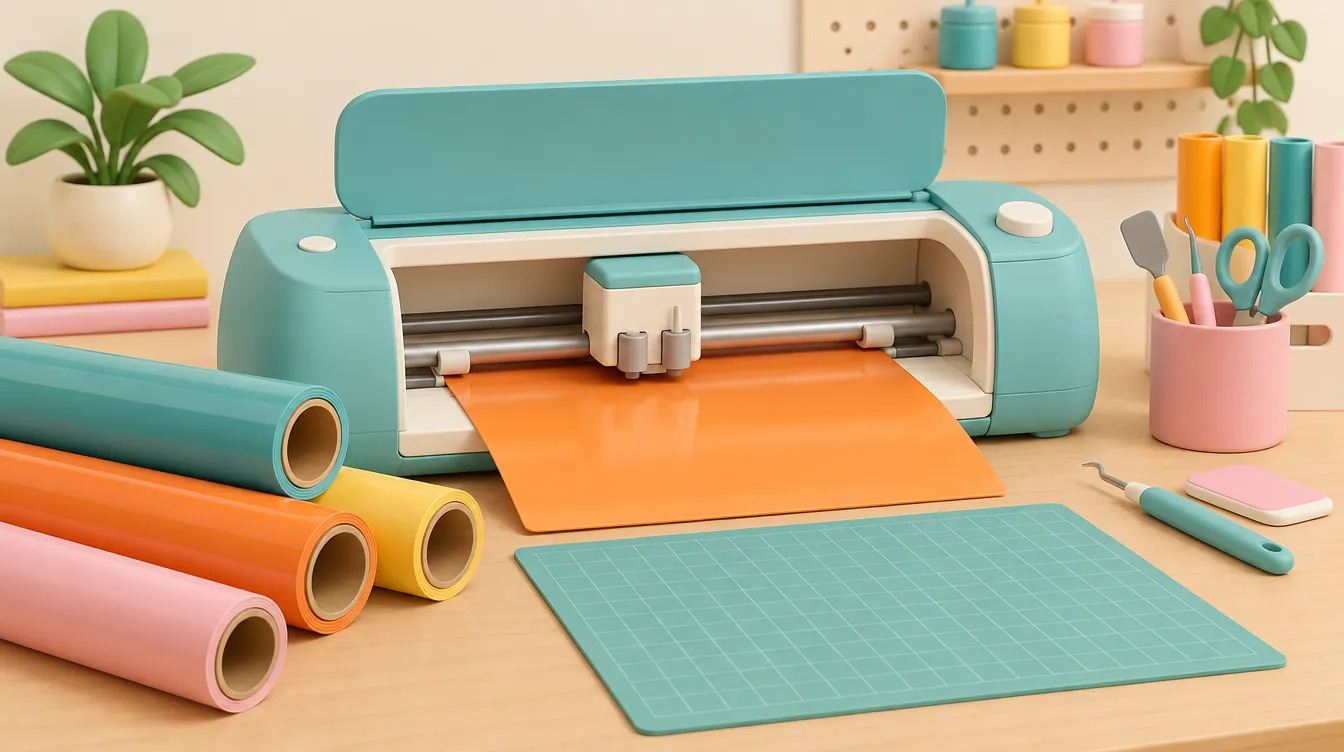
No—not without a machine mat and manual trimming. Buying Cricut Smart Materials does not give an Explore Air 2 matless cutting capability. Per Cricut's official Explore Air 2 Quick Start Guide, older Explore models must place every material—including Smart Materials—onto a 12" x 12" or 12" x 24" machine mat, which caps single-pass cuts at an 11.5-inch width.
- Top Pick for Explore Air 2 Owners: Cricut Premium Vinyl Permanent 12" x 48" (Model 2006640) paired with a Cricut StandardGrip 12" x 24" Mat (Model 2007796). Drops directly onto your mat at 12 inches wide with zero edge trimming.
- Runner-Up (If Sharing With a Newer Machine): Cricut Smart Vinyl Permanent 13" x 3 ft (Model 2008023). Works on an Explore Air 2 only after you slice 1 inch off its 13-inch width and adhere it to a mat.
- Who Should Buy Smart Materials: Owners of a Cricut Explore 3, Maker 3, or Venture—or Explore Air 2 owners who score deep clearance pricing on 13-inch rolls and do not mind trimming every sheet down to 12 inches before loading.
- Who Should Skip Smart Materials: Explore Air 2 owners expecting matless feeding, buyers planning single continuous decals longer than 23.5 inches without tiling, and shoppers lured by discounted 13-inch bundles lacking a 12" x 24" mat.
Explore Air 2 Vinyl, Mat, and Upgrade Comparison
| Product & Model | Key Hardware / Material Specs | Best Use Case | Retailer | Price |
|---|---|---|---|---|
| Cricut Premium Vinyl Permanent (12" x 48") Model 2006640 |
12" exact mat width (no trimming); 48" roll length; 3.0 mil glossy calendered PVC | Best overall everyday vinyl for Explore Air 2 owners | Walmart | $9.99 (MSRP $14.99) |
| Cricut StandardGrip Machine Mat 12" x 24" (2-Pack) Model 2007796 |
11.5" x 23.5" usable cut area; Medium-tack adhesive PVC; 24" max mat length | Unlocking maximum single-pass length on Explore Air 2 | Amazon | Check Live Price on Amazon |
| Cricut Smart Vinyl Permanent (13" x 3 ft) Model 2008023 |
13" width (must trim 1" for Air 2); Thick matless backing liner; 36" roll length | Multi-machine households or deep clearance deals | Target | $8.99 (MSRP $11.99) |
| Cricut Smart Iron-On HTV (13" x 3 ft) Model 2008074 |
13" width (trim to 12" for Air 2); Heat-activated PU film; Heavy carrier sheet | Apparel HTV if planning an Explore 3 upgrade soon | Amazon | Check Live Price on Amazon |
| Cricut Explore 3 Cutting Machine Model 2008337 |
True matless Smart Material feed; Up to 12 ft continuous cut; 11.7" max cut width | True matless cutting for multi-foot wall signs | Best Buy | $249.00 (MSRP $319.99) |
Interactive Explore Air 2 Smart Material & Cut-Area Checker
Use this calculator before buying discounted rolls or project bundles. Enter your machine model, material width, design dimensions, and mat size to verify whether the material fits without trimming, exceeds the Explore Air 2's 11.5-inch usable cut width, or forces you to split your design across multiple cuts.
Core Compatibility Rules: Why Smart Materials Do Not Make an Explore Air 2 Matless
Shoppers frequently mistake the "Smart" branding on Cricut Smart Vinyl, Smart Iron-On, and Smart Paper Sticker Cardstock for a material property that upgrades older cutters. It does not. Matless cutting depends on physical hardware inside newer machines—specifically the optical material-width sensors, dual-pinch roller geometry, and 13-inch feeder guides built into the Cricut Explore 3 and Cricut Maker 3.
According to Cricut's Explore Air 2 Quick Start Guide, older Explore-generation machines must load all cuttable media on a machine mat. An Explore Air 2 expects a standard 12-inch-wide adhesive mat to slide under its white star-wheel guides and outer rubber pinch rollers. If you attempt to feed an unmounted Smart Material roll directly into an Explore Air 2, the machine lacks the front and rear material-detection sensors required to measure roll length, track edge skew, or prevent the backing liner from buckling under blade drag.
Even when mounted on a mat, width becomes an immediate friction point. Smart Materials designed for Explore 3 and Maker 3 machines measure 13 inches wide, whereas an Explore Air 2 mat measures 12 inches wide inside its outer plastic border (with a 12-inch adhesive grid). Loading a 13-inch strip directly onto a 12-inch mat leaves a 1-inch overhang that hits the Explore Air 2's carriage housing and roller brackets. To use Smart Vinyl or Smart Iron-On on an Explore Air 2 safely, you must manually trim 1 inch off the width with a paper trimmer or rotary cutter—reducing the sheet to 12 inches—before pressing it onto a StandardGrip mat.
Dimensions inside Cricut Design Space impose a second hard ceiling. As detailed in the Explore Air 2 Quick Start Guide, Cricut lists 12-by-12-inch and 12-by-24-inch mats for the machine, but the usable cutting area is always smaller than the mat's outer dimensions. Standard 12-inch mats provide an 11.5-inch cutting width, yielding a maximum single-pass area of 11.5 x 11.5 inches on the 12-inch mat and 11.5 x 23.5 inches on the 24-inch mat. Buying a 3-foot, 12-foot, or 21-foot Smart Material roll does not allow an Explore Air 2 to cut one uninterrupted 36-inch banner; any design longer than 23.5 inches must be sliced into tiled sections in Design Space.
Matless guidance also contains a hidden quantity trap even for owners of compatible machines. Cricut's Smart Materials documentation notes that compatible matless cutters require extra material beyond the design's finished dimensions for feeding and gripping. That margin prevents rollers from slipping off the tail end of the sheet during the final pass. When you factor in both the 1-inch width trim required on an Explore Air 2 and the gripping margin required on an Explore 3, headline roll length never equals 100% usable project area.
How We Evaluated & Specified These Picks
To separate practical Explore Air 2 purchases from wasteful bundles, we audited manufacturer hardware documentation, dimensional tolerances, material specs, and per-square-foot pricing rather than running laboratory adhesion or laundry-wash durability tests. Because this guide specifically resolves purchase compatibility—we have not cut these specific rolls or tested long-term adhesive peel or wash-cycle survival—every recommendation is grounded in verified mechanical fit and unit economics:
- Exact Width Tolerance (12.0" vs. 13.0"): We prioritized materials manufactured at an exact 12-inch width for Explore Air 2 owners so sheets drop onto a StandardGrip mat straight out of the box without requiring a 12-inch trimmer pass that wastes 7.7% of every roll.
- Usable Single-Pass Cut Geometry (11.5" x 23.5" Max): We checked mat specifications against Design Space layout limits, disqualifying any bundle marketed for "long banners" on an Explore Air 2 if it omitted a 12" x 24" mat.
- Effective Cost Per Usable Square Foot: Rather than judging deals by roll count or MSRP discounts, we normalized retail prices against usable width (12 inches maximum on an Explore Air 2 mat, meaning a 13-inch Smart roll loses 1 inch of width unless salvaged as narrow scrap strips).
- Bundle & Tool Compatibility Audit: Following the core criteria in our shopping checklist, we inspected multi-item packs to confirm that vinyl, heat-transfer vinyl (HTV), and cardstock are not conflated into a single workflow without the matching mats, transfer tape, or heat press supplies.
In-Depth Product Reviews & Compatibility Breakdowns
1. Cricut Premium Vinyl Permanent (12" x 48") — Model 2006640
Verdict: The smartest everyday vinyl purchase for Explore Air 2 owners.
For anyone running an Explore Air 2, standard 12-inch Cricut Premium Vinyl Permanent (Model 2006640) outperforms Smart Vinyl on both workflow speed and usable cost. Because the roll ships at an exact 12-inch width across a 48-inch length (4.0 square feet total), you peel off what you need, lay it squarely inside the 12-inch adhesive grid of your machine mat, and load immediately. There is zero edge overhang to snag your rollers and no extra trimming step before cutting.
Constructed from 3.0-mil glossy calendered PVC on a flat-lying paper liner, this roll targets indoor and outdoor decals, tumblers, mailboxes, and window lettering. Note that the roll ships without transfer tape; you will need a separate roll of StandardGrip transfer tape (12" x 48" or longer) to lift intricate lettering cleanly after weeding. Compare Walmart listings against single-roll packs when restocking basics: at its frequent $9.99 sale price versus a $14.99 MSRP, you pay $2.50 per usable square foot—nearly 25% less per square foot than buying a 3-foot Smart Vinyl roll at standard retail and trimming an inch off the edge.
Pros: Exact 12-inch width matches Explore Air 2 mats with zero edge waste; 48-inch roll length cuts two full 23.5-inch decals with 1 inch to spare; lower cost per square foot than Smart Vinyl.
Cons / Dealbreakers: Requires a machine mat on every machine generation, including Explore 3; transfer tape is sold separately.
2. Cricut StandardGrip Machine Mat 12" x 24" (2-Pack) — Model 2007796
Verdict: The single best hardware add-on for cutting longer designs on an Explore Air 2.
If you are eyeing Smart Materials because you want to cut porch signs, wall quotes, or wide car decals, buying a Cricut StandardGrip Machine Mat 12" x 24" 2-Pack (Model 2007796) solves most of that length problem for a fraction of the cost of a new machine. Each mat uses a medium-tack adhesive formulation engineered specifically for permanent vinyl, removable vinyl, iron-on HTV, and heavy cardstock, giving your Explore Air 2 an 11.5 x 23.5-inch continuous cutting zone—more than double the area of the 12" x 12" mat included in the box.
The mat body is fabricated from flexible polypropylene/PVC with printed 1-inch gridlines and 0.25-inch tick marks that make squaring trimmed Smart Materials straightforward. The main physical limitation to watch for is front-and-rear desk clearance: a 24-inch mat needs at least 26 inches of unobstructed flat space both in front of and behind your Explore Air 2 so the mat does not dip and pull loose from the rollers mid-cut. Keep the clear protective film cover on between sessions; dust and craft lint degrade the medium-tack adhesive faster than blade scoring does.
Pros: Doubles maximum Explore Air 2 single-pass cut length from 11.5" to 23.5"; works with both standard 12-inch rolls and trimmed Smart Materials; two-pack provides a backup mat for batch projects.
Cons / Dealbreakers: Requires deep front-and-back table clearance; still cannot match multi-foot continuous cuts without tiling in Design Space.
3. Cricut Smart Vinyl Permanent (13" x 3 ft) — Model 2008023
Verdict: Worth buying for an Explore Air 2 only on steep clearance or in multi-machine households.
Cricut Smart Vinyl Permanent (Model 2008023) replaces standard paper backing with a rigid, thicker synthetic carrier liner engineered to pass unsupported through an Explore 3 or Maker 3. On an Explore Air 2, that stiffer backing offers no matless benefit, and the 13-inch width becomes an extra chore. Every time you unroll a sheet for an Explore Air 2, you must slice 1 inch off the side (leaving 12 inches by 36 inches, or 3.0 usable square feet) before pressing it onto a StandardGrip mat.
Because the carrier sheet is noticeably thicker than regular 12-inch vinyl backing, make sure your vinyl rests flat on the mat and brayer down the edges firmly so the corners do not lift as the mat flexes through the rollers. On the Explore Air 2's physical Smart Set Dial, select the standard Vinyl setting first and run a small test shape before committing a full sheet; the thicker liner does not change the face-film cut depth, though worn blades can struggle if mat adhesion is weak. At Target's $8.99 deal price (vs. $11.99 MSRP), the trimmed cost works out to $3.00 per usable square foot—acceptable if you share supplies with an Explore 3 owner, but still pricier per square foot than 12-inch Premium Vinyl.
Pros: Compatible with Explore Air 2 once trimmed to 12 inches and placed on a mat; thick carrier liner resists tearing during storage; future-proof if you plan to upgrade to an Explore 3.
Cons / Dealbreakers: Wastes 7.7% of roll width on an Explore Air 2 unless you repurpose 1-inch strips; requires manual trimming before every cut; higher cost per usable square foot at MSRP.
4. Cricut Smart Iron-On HTV (13" x 3 ft) — Model 2008074
Verdict: Functional on an Explore Air 2 with trimming and mirroring, but standard 12-inch HTV is easier.
Cricut Smart Iron-On (Model 2008074) pairs a heat-activated polyurethane (PU) film with a rigid clear carrier sheet rated for matless feeding on newer machines. Like Smart Vinyl, this roll measures 13 inches wide by 36 inches long and requires trimming down to 12 inches before adhering shiny-side-down onto a 12" x 12" or 12" x 24" StandardGrip mat for an Explore Air 2. Do not forget that iron-on designs must still be mirrored in Design Space before cutting—whether you cut matless on an Explore 3 or on a mat with an Explore Air 2.
That thicker clear carrier sheet is both a minor perk and a slight drawback on older machines. While it makes weeding large block letters less prone to stretching, its added stiffness means it resists curving smoothly on a lightly worn mat. Always pair trimmed Smart Iron-On with a fresh or freshly cleaned StandardGrip mat and check that your Explore Air 2's Smart Set Dial is set to Iron-On (with a quick test cut on a corner scrap). Unless you specifically find a heavy markdown on Amazon or share rolls with a Maker 3 studio, standard 12-inch Everyday Iron-On avoids the 1-inch trim altogether.
Pros: Thick clear carrier sheet stays flat during weeding; works reliably on an Explore Air 2 StandardGrip mat after width trimming; carries strong wash-durability ratings from Cricut.
Cons / Dealbreakers: 13-inch width requires pre-trimming on an Explore Air 2; stiff carrier lifts more easily on worn mats; costs more per usable square inch than standard 12-inch HTV.
5. Cricut Explore 3 Cutting Machine — Model 2008337
Verdict: The true hardware solution if matless multi-foot cutting is non-negotiable.
If your project list genuinely demands cutting 4-foot to 12-foot continuous wall graphics, store window lettering, or batch T-shirt transfers without stopping to reload a 24-inch mat, no roll of vinyl can retrofit an Explore Air 2 to do that job—you need the Cricut Explore 3 (Model 2008337). Built with front and rear Smart Material sensors and faster brushless motor drives, the Explore 3 feeds 13-inch Smart Materials directly through the carriage with no mat, yielding an 11.7-inch cut width and up to 12 feet (144 inches) of continuous length in one pass.
For casual crafters making mugs, greeting cards, and 12-inch-wide decals, spending $249.00 (MSRP $319.99) at Best Buy to replace a working Explore Air 2 rarely makes financial sense. Both machines use the same Fine-Point Blade housing, support the same 100+ mat-based materials, and cut standard 12-inch vinyl on a mat at nearly identical precision. Upgrade only when your time spent tiling 24-inch mat cuts—or your need for uninterrupted 3-to-12-foot runs—outweighs the $249 hardware spend plus the higher ongoing cost of 13-inch Smart Materials.
Pros: Unlocks genuine matless feeding and up to 12-foot continuous Smart Material cuts; roughly twice as fast on matless cuts as an Explore Air 2; includes 11.7-inch cut width.
Cons / Dealbreakers: Expensive upgrade if your designs already fit under 23.5 inches; standard 12-inch vinyl and cardstock still require buying and replacing machine mats.
What to Avoid: Compatibility Traps and Bundle Gimmicks
When major sales hit big-box retailers, Cricut bundles often stack Smart Materials alongside machines or accessories that do not fit together cleanly. Watch out for these four specific pitfalls before clicking "buy":
- Discounted "Explore Air 2 + Smart Materials" Third-Party Bundles: Some marketplace sellers pair older Explore Air 2 inventory with 13-inch Smart Vinyl rolls to pad item counts. Those rolls will not load matless, and if the bundle omits a 12" x 24" mat, you are stuck cutting 11.5-inch segments even if the bundle advertises "long vinyl rolls."
- Cricut Joy Smart Materials (5.5" Wide): Never confuse standard 13-inch Smart Materials with Cricut Joy Smart Materials (
5.5 incheswide) or Cricut Venture Smart Materials (24 incheswide). Joy rolls are narrower than half an Explore Air 2 mat (wasting mat space and carrying a higher per-square-inch cost), while 24-inch Venture rolls require slicing in half lengthwise just to fit an Explore Air 2 mat. - Mixing Workflows Inside "Starter" Packs: A bundle containing adhesive vinyl, iron-on HTV, and textured cardstock does not include one universal application kit. Adhesive vinyl needs transfer tape and a scraper; HTV needs a heat press or EasyPress and protective sheet; cardstock requires a LightGrip (blue) mat so paper does not rip off a StandardGrip (green) mat. Price only the items that match the exact surface and finish of your next project.
- Assuming Roll Length Equals Design Length: Even on an Explore 3, buying a 3-foot (36-inch) Smart Vinyl roll does not let you cut a 36-inch-long word. Both matless feed margins and mat borders consume extra material. Always sketch your finished dimensions first, leave room in your budget for a small test cut, and verify your exact model's cut limits before stocking up.
Frequently Asked Questions
Can an Explore Air 2 cut Cricut Smart Materials without a mat?
No. Cricut does not support matless cutting on the Explore Air 2 or any earlier Explore-generation machine. According to Cricut's official Explore Air 2 Quick Start Guide, you must place Smart Materials onto a 12" x 12" or 12" x 24" machine mat—and trim 13-inch Smart rolls down to 12 inches wide—rather than feeding them directly into the rollers.
Does a 12-inch Cricut mat provide a full 12-inch cutting width on an Explore Air 2?
No. On the Explore Air 2 configuration documented by Cricut, standard 12-inch mats have an outer border that leaves an 11.5-inch maximum cutting width. A 12" x 12" mat gives you an 11.5" x 11.5" usable design area, and a 12" x 24" mat gives you an 11.5" x 23.5" usable design area, so always size your graphics inside those inner tolerances.
Should I buy a long Cricut Smart Materials roll for a large Explore Air 2 project?
Only if you verify how you will split the design and confirm the per-square-foot price beats standard 12-inch vinyl. A 3-foot or 12-foot Smart Material roll does not override the Explore Air 2's 23.5-inch maximum single-pass mat length, and you will still have to trim 1 inch off the 13-inch width on every sheet. For large Explore Air 2 decals, buying a 12" x 24" StandardGrip mat and standard 12-inch-wide vinyl is cheaper, faster, and requires zero edge trimming.